Live Code Dashboard
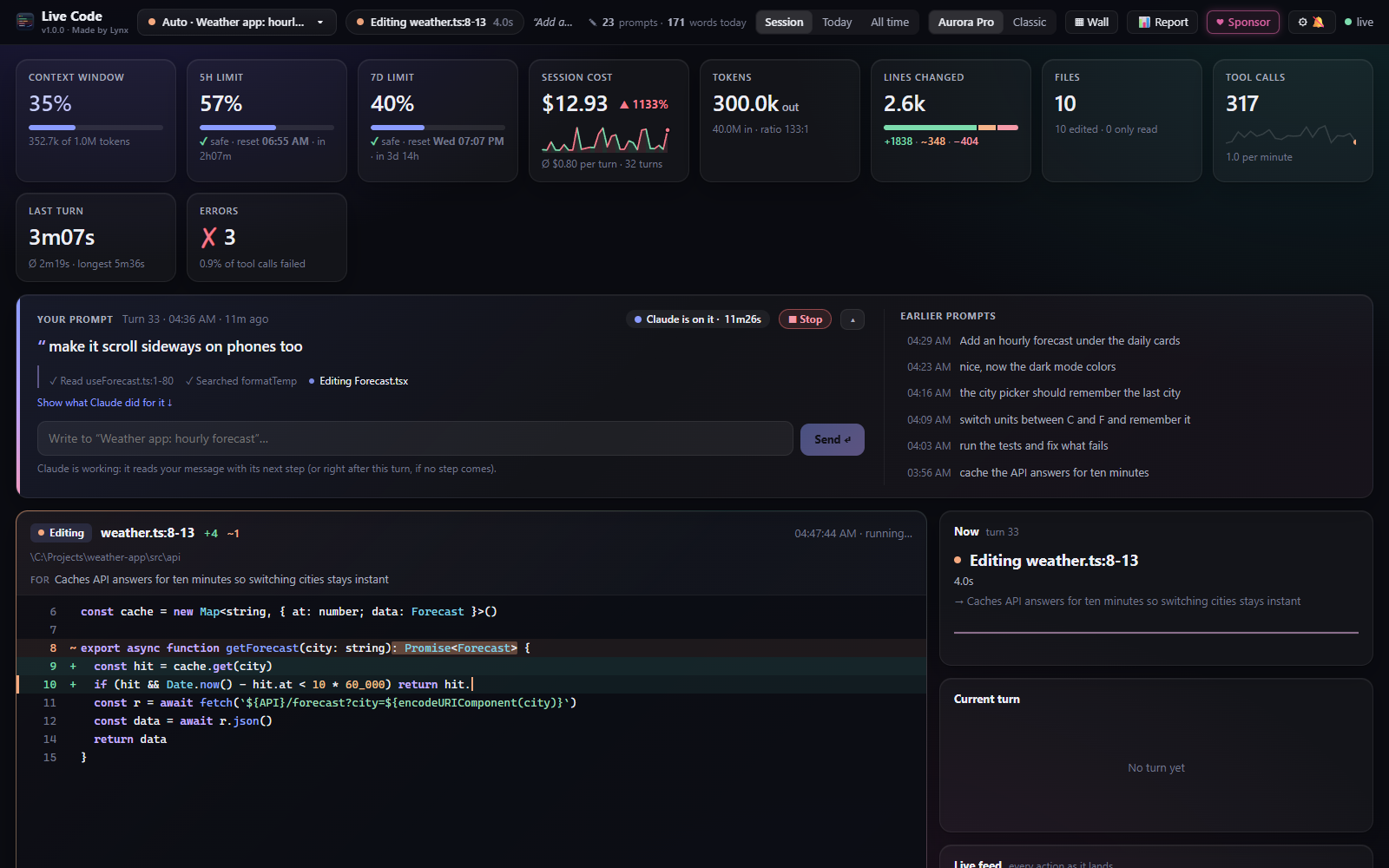
Watch Claude Code work, live. Every file it reads, every line it changes, what it costs, how close you are to your limits, all in one dashboard on your second screen, with a Stream Deck plugin and Philips Hue lights built in.
claude plugin validate to auditGuide →Writes files, executes local shell processes, or programmatically drives Claude.
Statically scanned from hooks & source. Learn how to audit
Live Code Dashboard
Watch Claude Code work, live. Every file it reads, every line it changes, every image and browser step it sees, what it costs, how close you are to your limits, all in one dashboard on your second screen. Your CLAUDE.md is open beside it to read and edit, with a Stream Deck plugin and Philips Hue lights built in.




English
What it does
Live code view
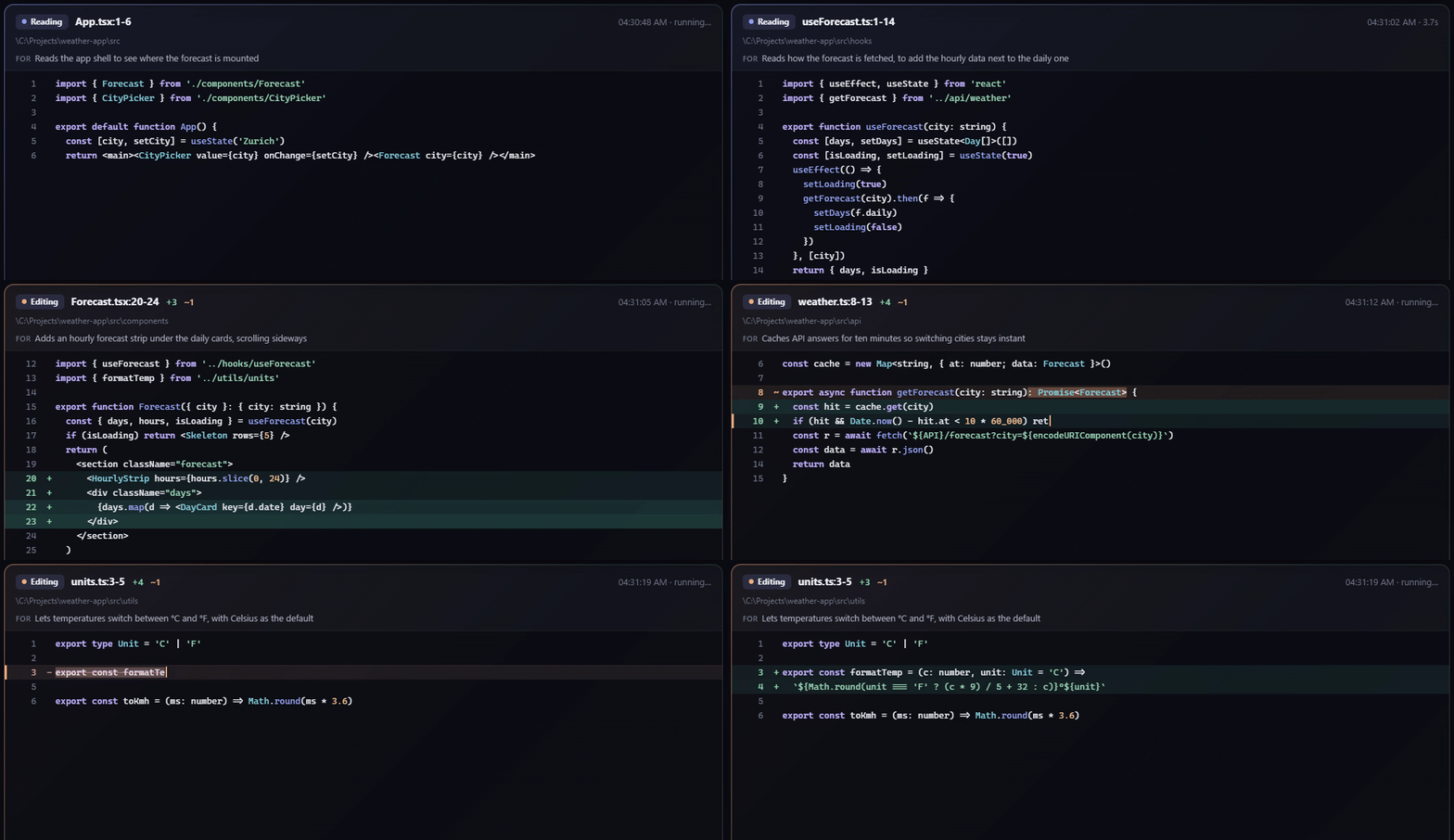
The change Claude is making right now, typed out line by line with syntax colors, and under it a short note on what it is for ("Caches API answers for ten minutes so switching cities stays instant"). Reads, searches and commands show up too, one after another, so you never miss a step.
Visual: see what Claude sees
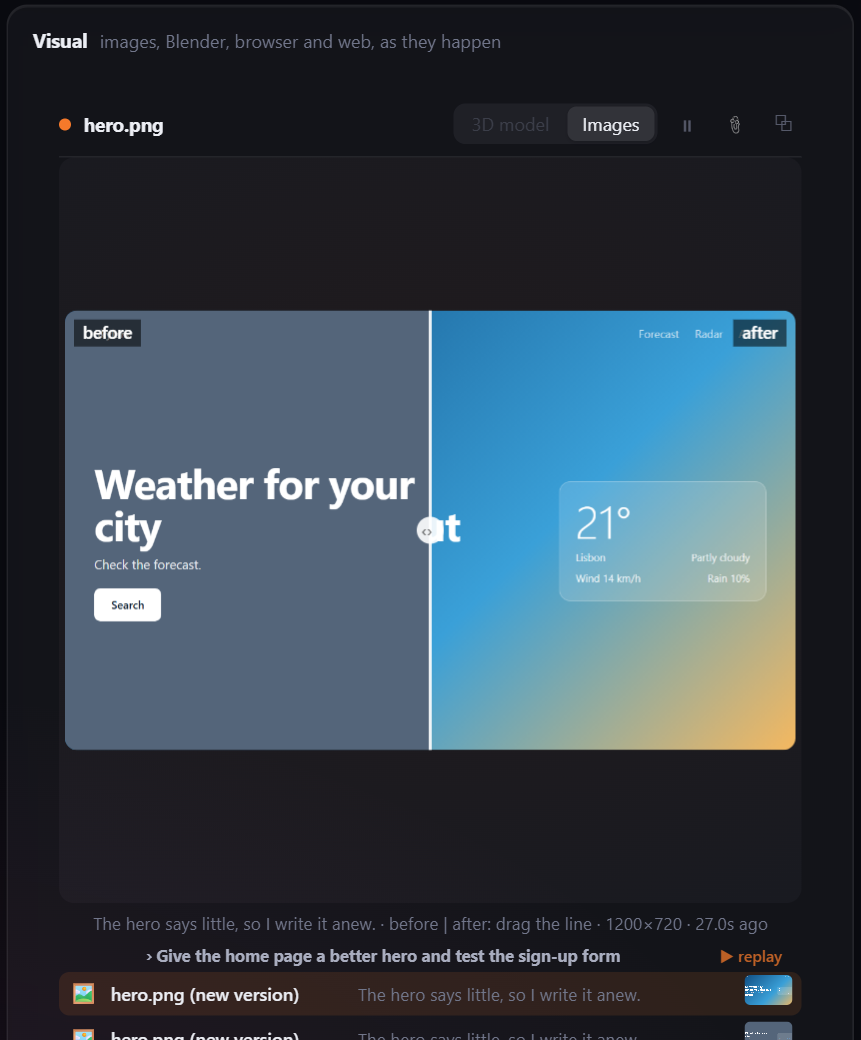
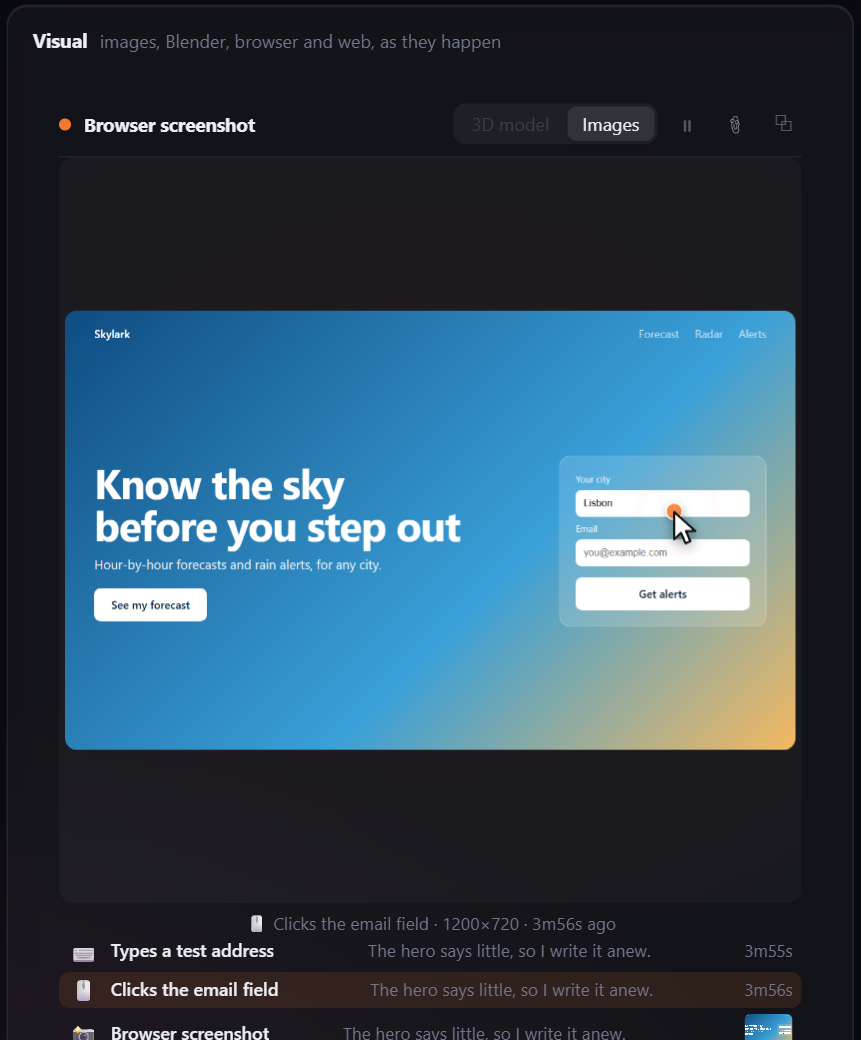
A card beside the live code shows what Claude looks at and makes: images building up tile by tile, browser steps on their screenshots, web searches and pages, before | after with a line to drag, commands in the background, files made, and a Blender model turning as it is built. Click 📎 on an image to take it along in your next prompt. All about Visual
Your CLAUDE.md, open beside the work
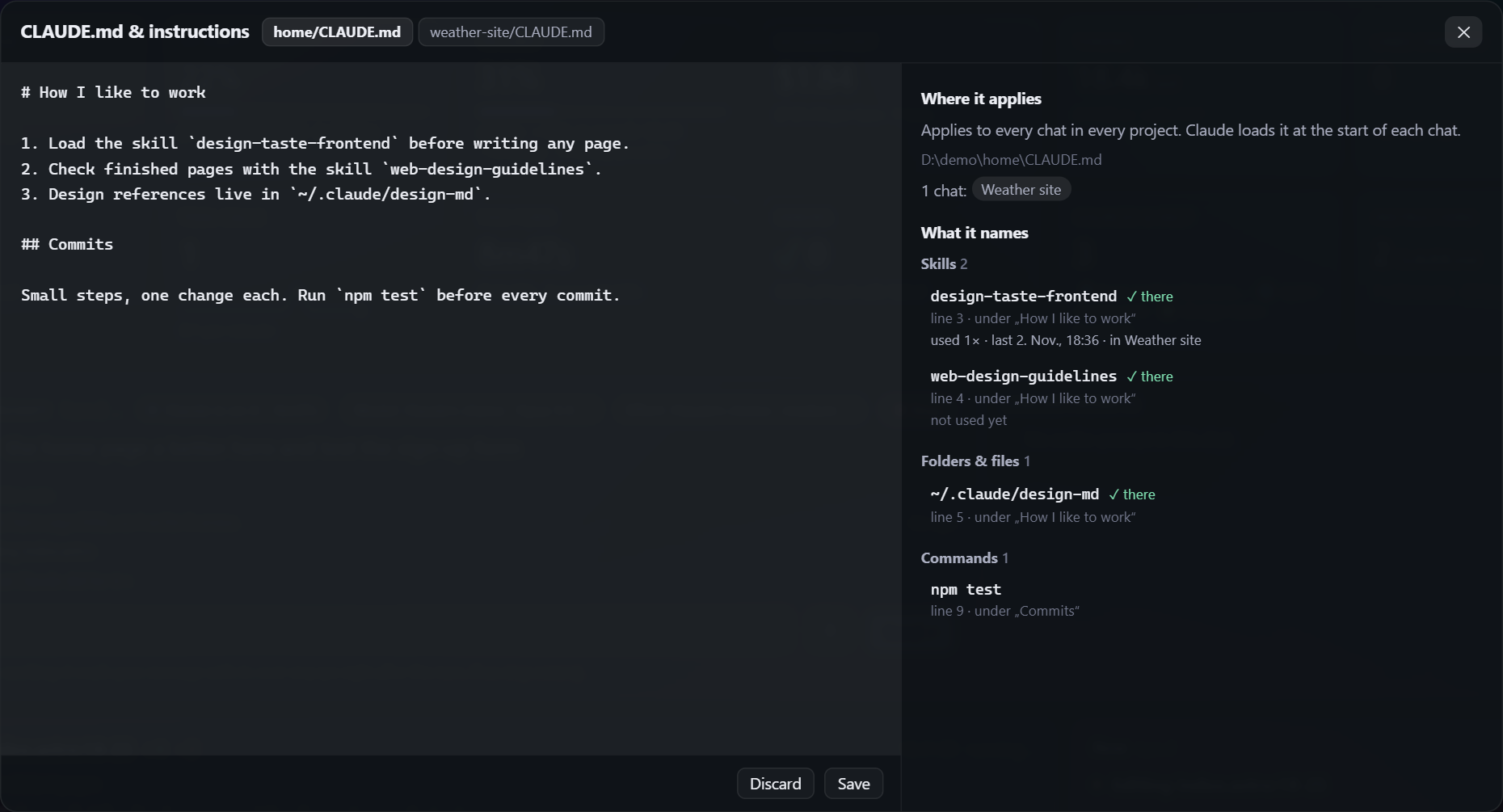
The Instructions tile opens every CLAUDE.md the chat runs under, to read and edit. Beside the text you see what each file names (skills, mods, files, commands, links), whether it is there, and how often Claude really used it. Sources & help counts what Claude took help from, prompt by prompt. All about both tiles
Limits & costs at a glance
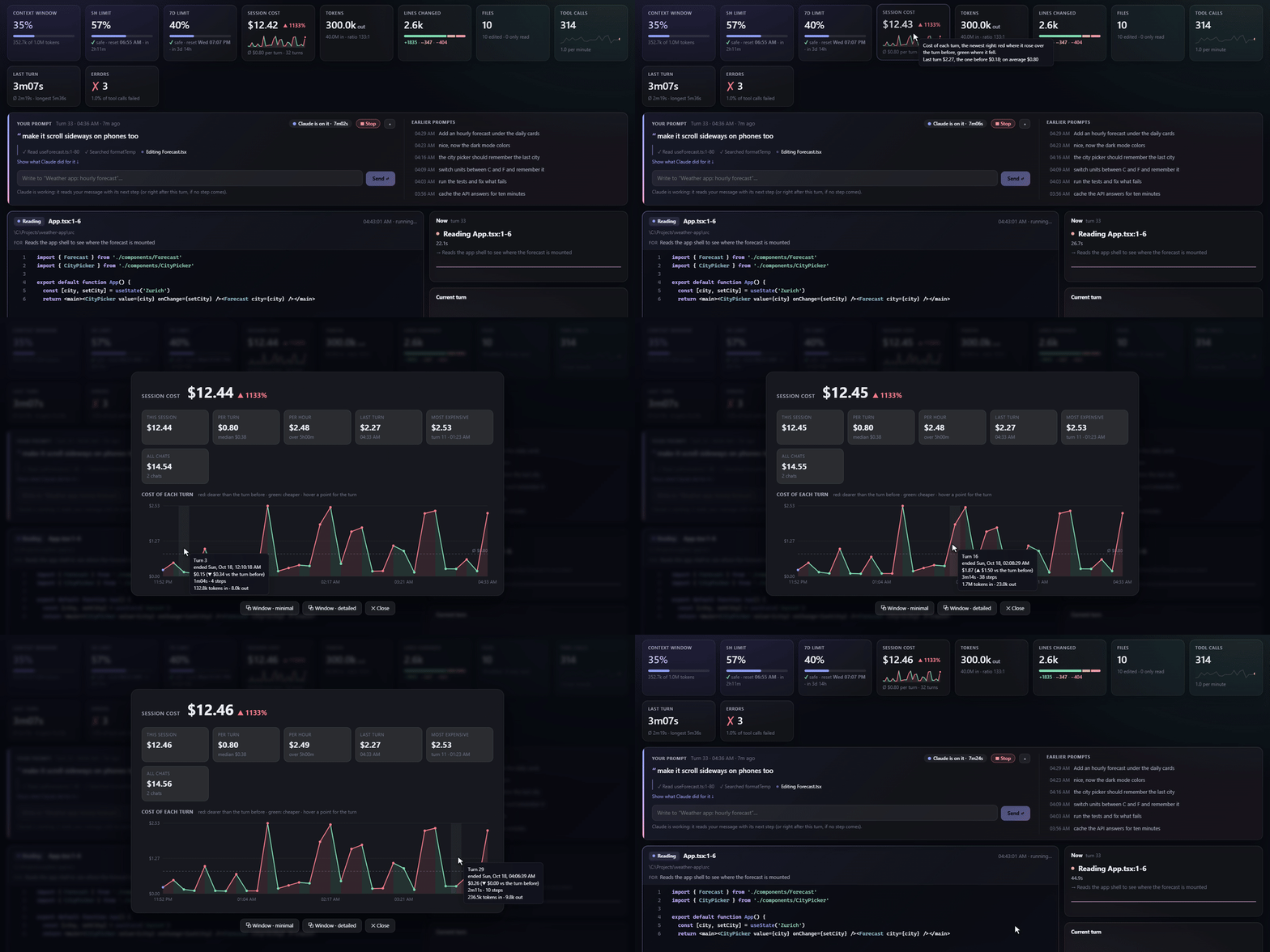
Context window, 5-hour and 7-day limits with a live reset countdown and a projection of when you would hit them, session cost as a stock-style chart (red going up, green going down), tokens, lines changed, files, tool calls, errors. Tiles turn yellow and red at thresholds you choose, and a chime plays when a limit resets.
Every tile opens up
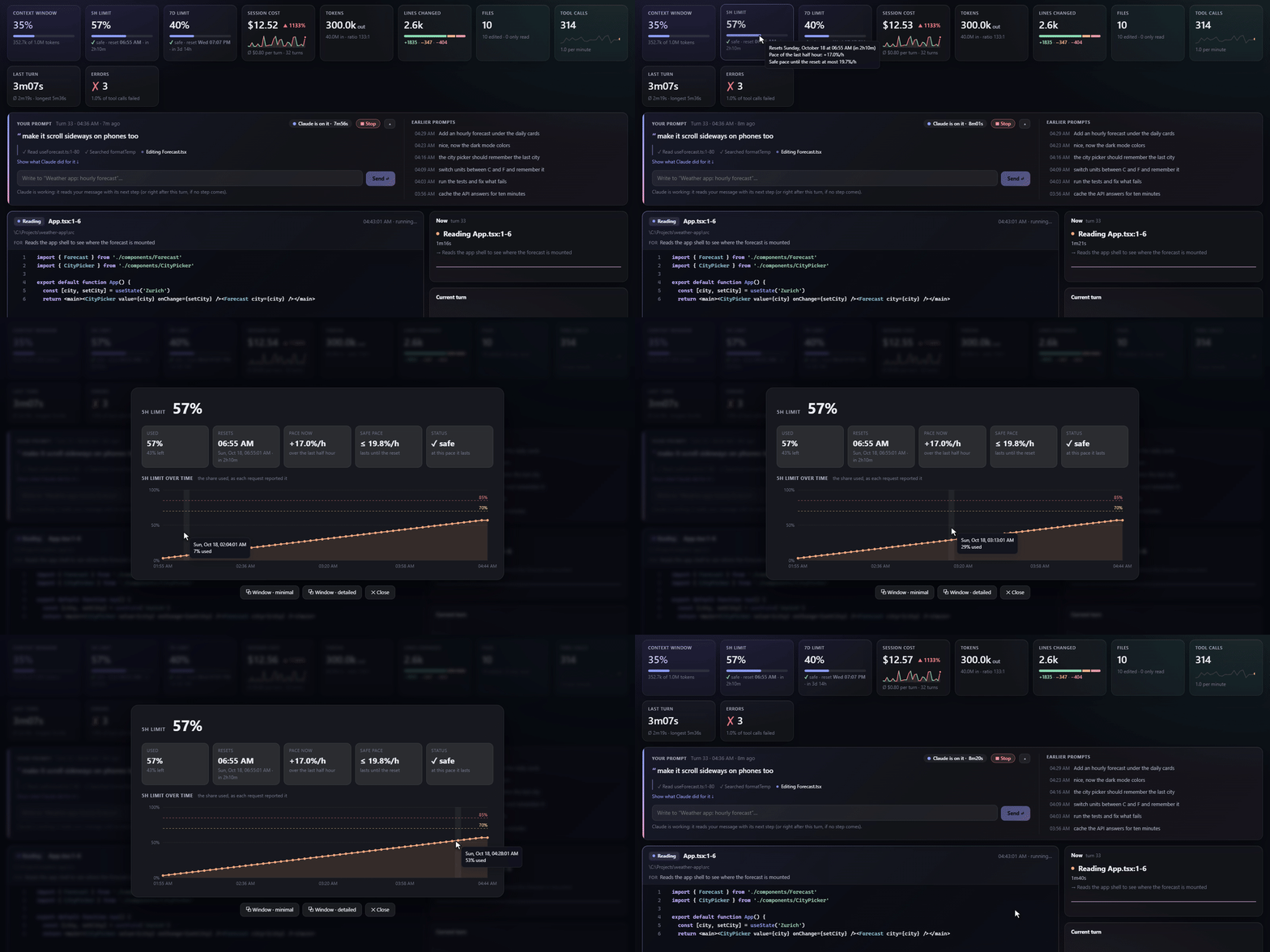
Click any tile for exact numbers and charts you can hover, or pop it out into its own frameless window (minimal or detailed) that remembers its place and screen.
Session cost: every turn's cost, red where it got dearer, green where cheaper; hover a point for its details.
5-hour limit: when it resets, how fast you use it now, and the pace that lasts until the reset.
The whole session in charts
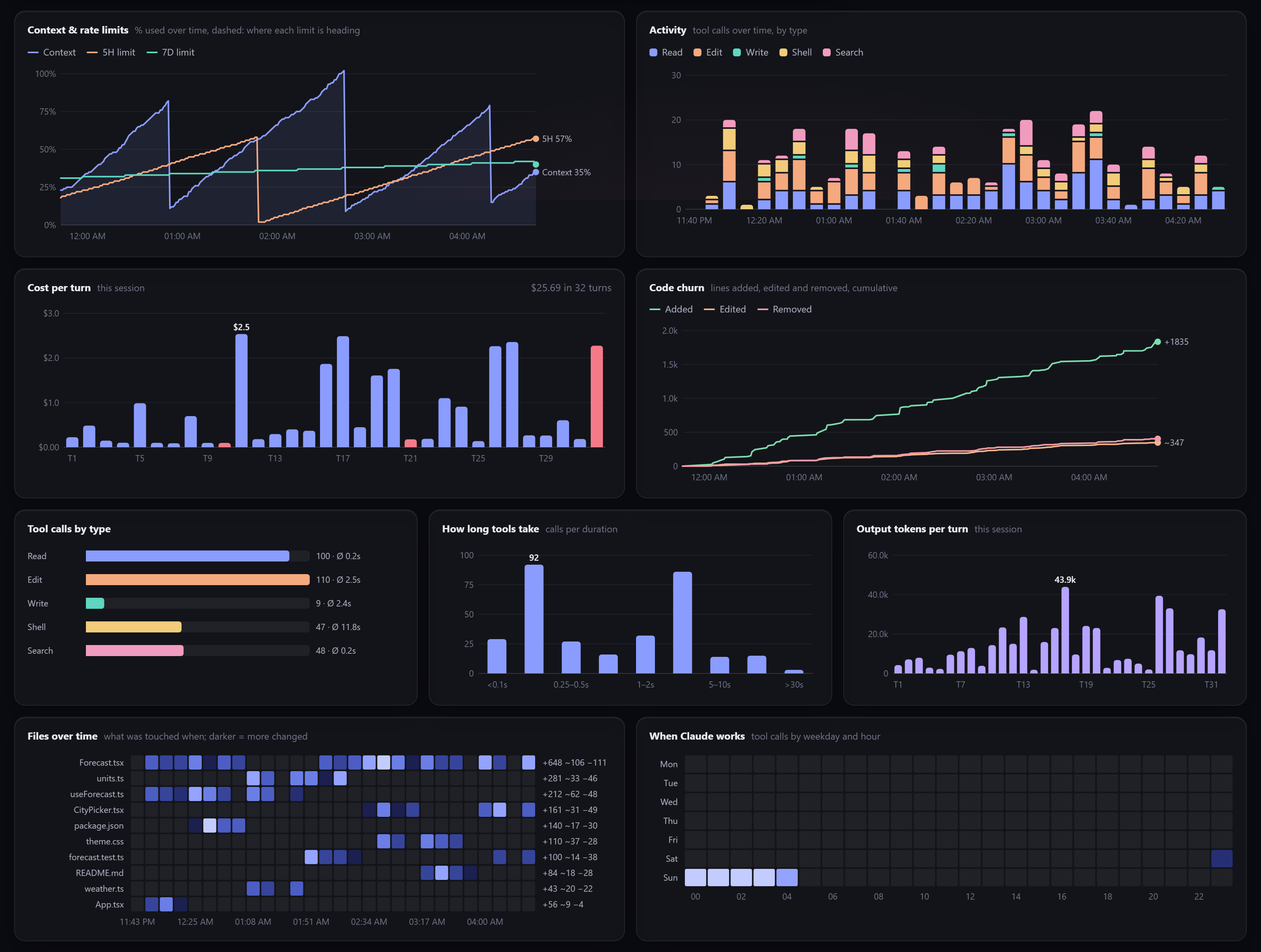
Context and limits over time (with every compaction), activity by tool, cost per turn, code churn, how long tools take, output tokens, which files were touched when, and when you work.
And more
- Talk back: send Claude a message, stop it, or answer its questions straight from the dashboard.
- Several chats at once: pick a chat from a list sorted into the folders of your Claude desktop app's sidebar (it follows any change there right away); a Report sums up the day and week by project.
- The Wall: every chat at work side by side, each tile staying in its place. A chat gone idle fades out after a minute. On top: what the running chats cost together and your usage limits. When a chat is done, a chime and a note tell you.
- Sound & voice: a chime when a task is done, and optionally the summary read aloud with Edge's free natural voices (one voice per chat if you like).
- It thinks with you: a calm "thinking" view while Claude thinks longer, a terminal animation while commands run, and an alarm when Claude seems stuck.
Stream Deck
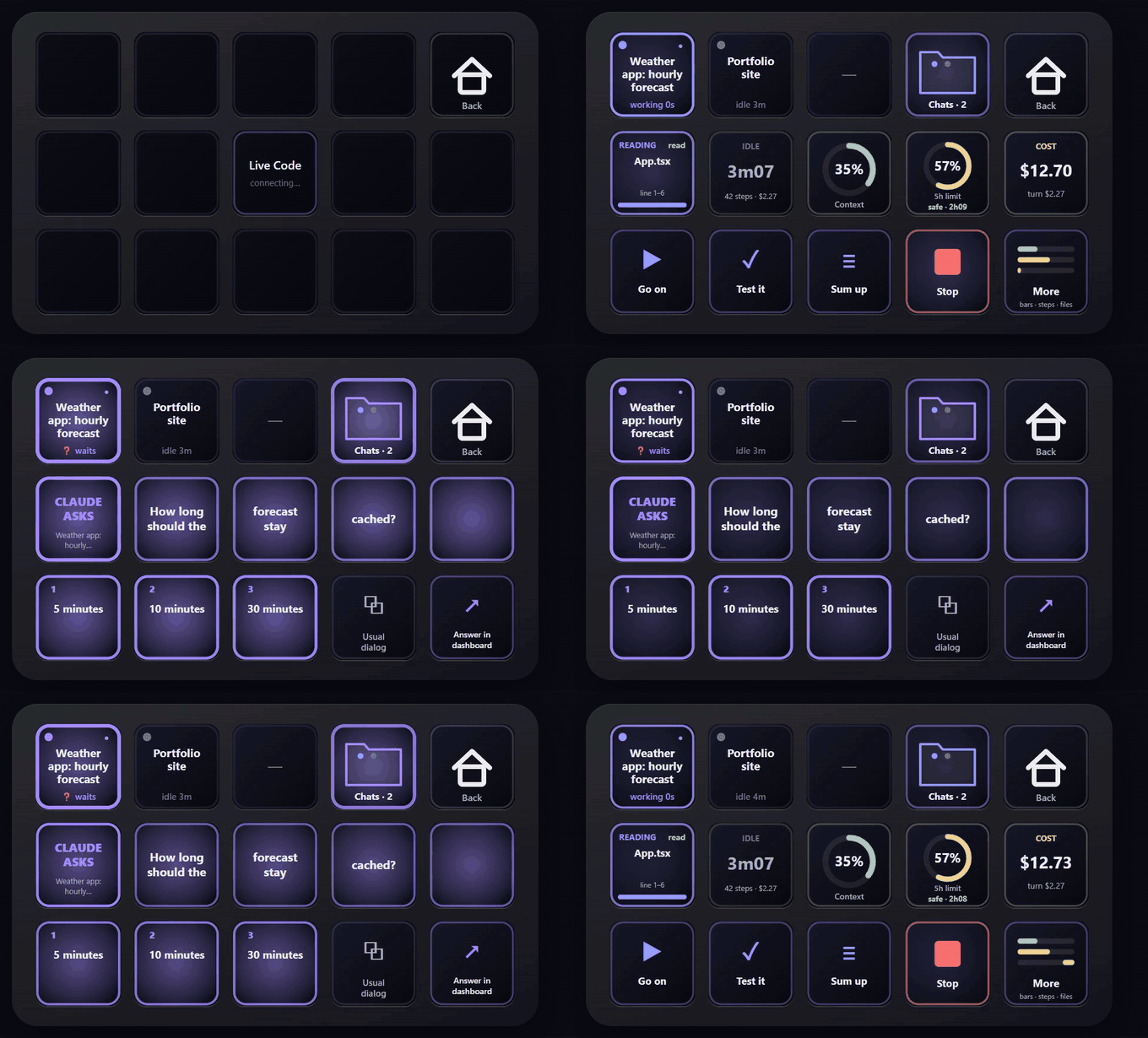
The plugin turns a 15-key Stream Deck into a Claude console:
| Row | Keys |
|---|---|
| top | your chats (switch with a press), ⌂ back |
| middle | what Claude does now, turn time, context, 5-hour limit, cost |
| bottom | 🎤 Talk (hold and speak), your first prompt key, Prompts (a page of up to 14 prompt keys), ■ stop, more |
- Talk: hold the key and speak; the deck shows what it hears, live. Let go and it is sent to the chat the deck follows. The dashboard window does the listening (Edge's speech recognition, in your language), so it has to be open; the first time, allow the microphone there. The 🎤 next to Send in the dashboard dictates into the box instead, to look over before sending.
- Prompt keys: set them up in the dashboard: ⚙ Settings → 🎛 Deck (icon, label, the text it sends, order).
- When Claude asks something, the keys turn into the question and its answers: answer with one press. When a task is done, the deck glows.
The setup installs the plugin automatically when the Stream Deck app is on your PC (confirm once in the Stream Deck app).
Philips Hue
Your lights answer what the dashboard shows:
- Done: a short mint glow, then back to how the light was.
- Question: the lights breathe violet until you answer.
- Stuck: a red flare.
- The site builds: a progress bar in orange. A lightstrip with color points fills from one end to the other, single lights one after the other; at the end a short green (or red if the build failed).
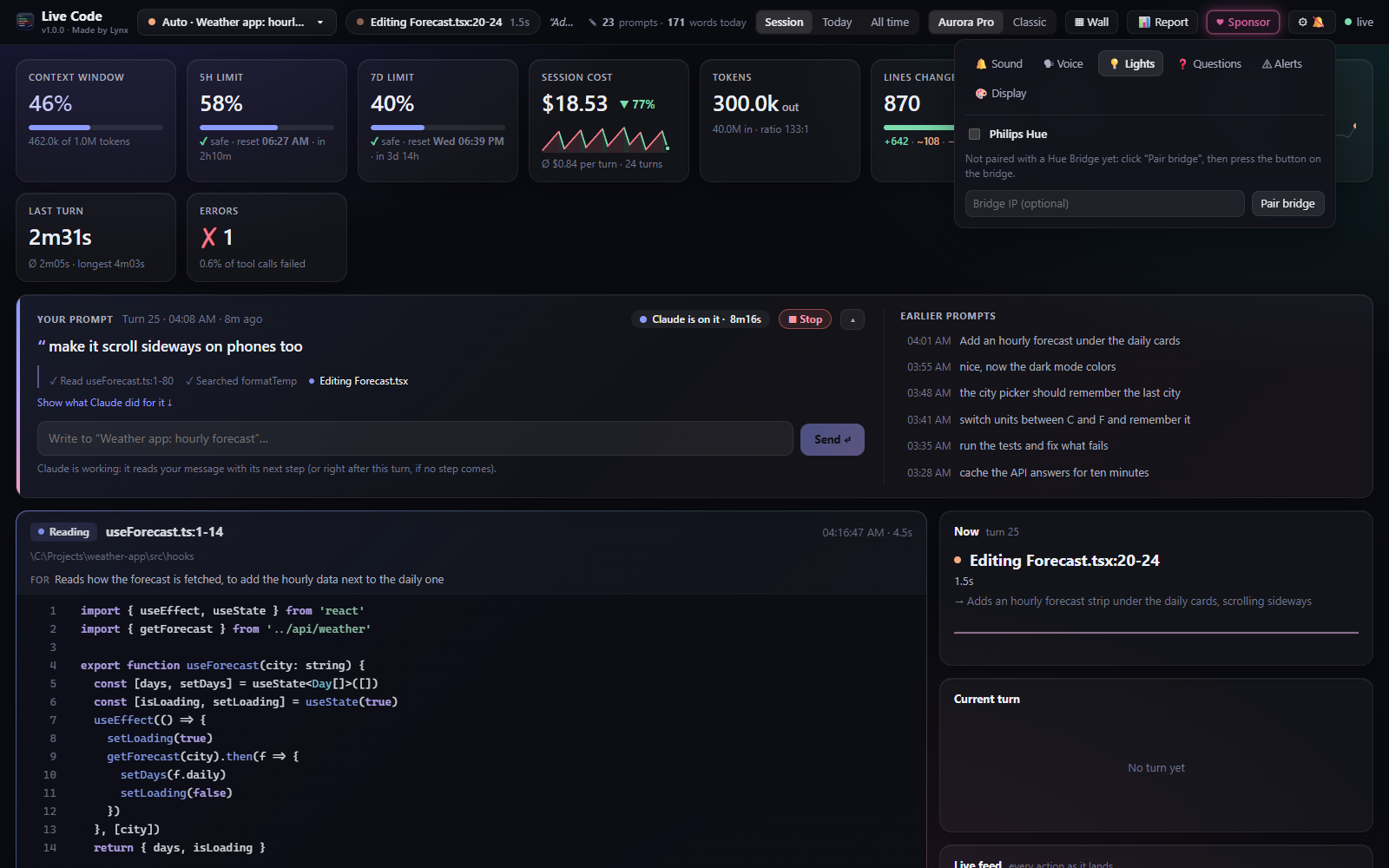
Each light keeps its own brightness, lights that are off stay off, and everything goes back to its previous state. Setup: dashboard → ⚙ Settings → 💡 Lights → Pair bridge, then press the round button on your Hue Bridge. Pick the lights and colors there.
Site builds (Cloudflare, Vercel, Netlify)
When a chat works in a GitHub repository whose site is built by Cloudflare (Workers or Pages), Vercel or Netlify, the live view shows the build: the host's mark, builds … · live or preview of a branch, the time, and a progress bar; then ✓ deployed or ✗ build failed with a link to the log. It needs the GitHub CLI signed in (gh auth login), no key of the host: the host reports each build to GitHub, and the dashboard reads it there. The host reports a build only once it is done, so the bar in between follows how long its builds usually take.
Visual: what Claude sees and makes
The Visual card sits beside the live view, below Current turn. It shows only the chat shown: its images, steps, files and its Blender model, never several projects at once. On top is a stage, and below it a list of everything, newest first:
- web searches, pages read and pages the browser opened (a click opens them);
- each step in the browser: a click shows on the screenshot before it as a pulsing ring, and what was typed shows below;
- the browser's screenshots;
- images Claude looked at, made or sent to you. An image written anew shows before | after, split by a line you can drag;
- files made (packages, exports, documents) and downloads, with size and folder;
- commands running in the background, with their newest output lines and then ✓ or ✗;
- Blender runs.
The list is grouped under the prompt it was for, and each entry says in a few words what it is for. Images zoom with the wheel and move by dragging; a double click fits them again. What changed in a new version lights up briefly before the before | after line comes. A pointer glides from one browser step to the next, and ▶ replay on a prompt plays its browser steps again. The list of the last hour survives a restart of the dashboard.
Pause: ⏸ on the card (or Visual in the settings) pauses it: nothing is read or watched for it until ▶. With no dashboard open, it rests by itself.
Images into your next prompt: click an image's 📎, in the list or above for the one shown. Pick as many as you like, and a second click takes one out again. The band above Claude's prompt shows them (📎 2 images, ✕ Remove), and your next prompt takes them along: Claude is told where they are and looks at each, as if you had dragged them into the chat. Under your prompt in Claude they show as small pictures (on the desktop) or by name; the prompt ends with a small mark ([📎 2 images from Live Code · …]), so that the same words sent twice still show only their own images.
Pop it out with ⧉ and it becomes a window that floats over the dashboard and comes by itself. Drag it by its head and size it at its corner. 📌 keeps it open, and ⧉ puts it back.
- Images: an image written where a chat works (a render, a texture a script painted, a screenshot), one sent to you or looked at, or a browser shot builds up on the stage tile by tile.
- Blender: when a chat runs Blender (
blender.exe -b … --python …), the dashboard offers Blender live. Switched on, it puts a small startup script into that Blender's startup scripts. From then on you watch the model turn as Claude builds it, in the dashboard, and each render lands as an image. It writes only to~/.claude/live-code-blender. Switched off in Settings → Display, the script is taken away again.
Sources & help, and your instructions
Two tiles at the top:
- Sources & help counts what Claude took help from in the chat shown (or in all chats, or today, as the range says): skills it loaded and the skill files it read, design references, repositories it cloned or read on GitHub, pages it fetched, web searches, documentation tools and guide agents, helper agents, packages it ran or looked up, and its memories and CLAUDE.md. Opened large, it lists each under the prompt it was for, with how often and when, filtered by kind.
- Instructions opens the CLAUDE.md files the chat runs under (the global one, the project's, its folders above, and the project memory index) to read and edit. Beside the text: where each file applies and to which chats, and everything it names (skills, mods, folders and files, commands, repositories, links) with the line and heading it stands under, whether it is there, and how often Claude used it. A click on one selects its line. Save (or Ctrl+S) writes the file, keeps the version before, and warns when the file was changed elsewhere meanwhile; text not saved yet survives a reload of the page.
The words follow your browser's language (German or English).
Install (one click)
You need Windows 10/11, Claude Code and Node.js. Open PowerShell and run:
irm https://raw.githubusercontent.com/CNLynx/Live-Code-Dashboard/main/install.ps1 | iex
That installs the mod, adds a Live Code Dashboard shortcut to the Start menu and desktop, sets up the Stream Deck plugin (if you have one) and opens the dashboard. Restart Claude Code once; from then on the dashboard starts together with Claude.
Or install by hand
At the prompt of a Claude Code session:
/plugin install live-code --marketplace CNLynx/Live-Code-Dashboard
(y to add the marketplace, then pick a scope.) Or from a shell:
claude plugin install live-code --marketplace CNLynx/Live-Code-Dashboard
Then, in Claude Code, type /live-code-setup for the shortcuts and the Stream Deck plugin.
Updating
The dashboard shows the installed version and the newest one on GitHub at the top left. When a newer one is out, an Update available tile appears next to the others: one click installs it and restarts the dashboard (the part inside Claude Code takes it with Claude's next start).
In Claude Code: /plugin → Marketplaces → cnlynx → enable auto-update, and new versions arrive by themselves. Or update by hand:
claude plugin marketplace update cnlynx
claude plugin update live-code@cnlynx
The dashboard shows "→ vX.Y.Z available" next to its version when there is a newer one. After an update the dashboard server and the Stream Deck plugin are swapped for the new version on the next start of Claude.
Make it yours, live, by prompting
The dashboard is plain HTML, CSS and JavaScript, and it reloads itself the moment a file changes: no restart, no blank flash, the new version fades in over the old. So you can simply ask Claude, in Claude Code:
"In the Live Code dashboard, make the cost tile blue and add a tile for the average turn time."
and watch the change appear while Claude is still typing:
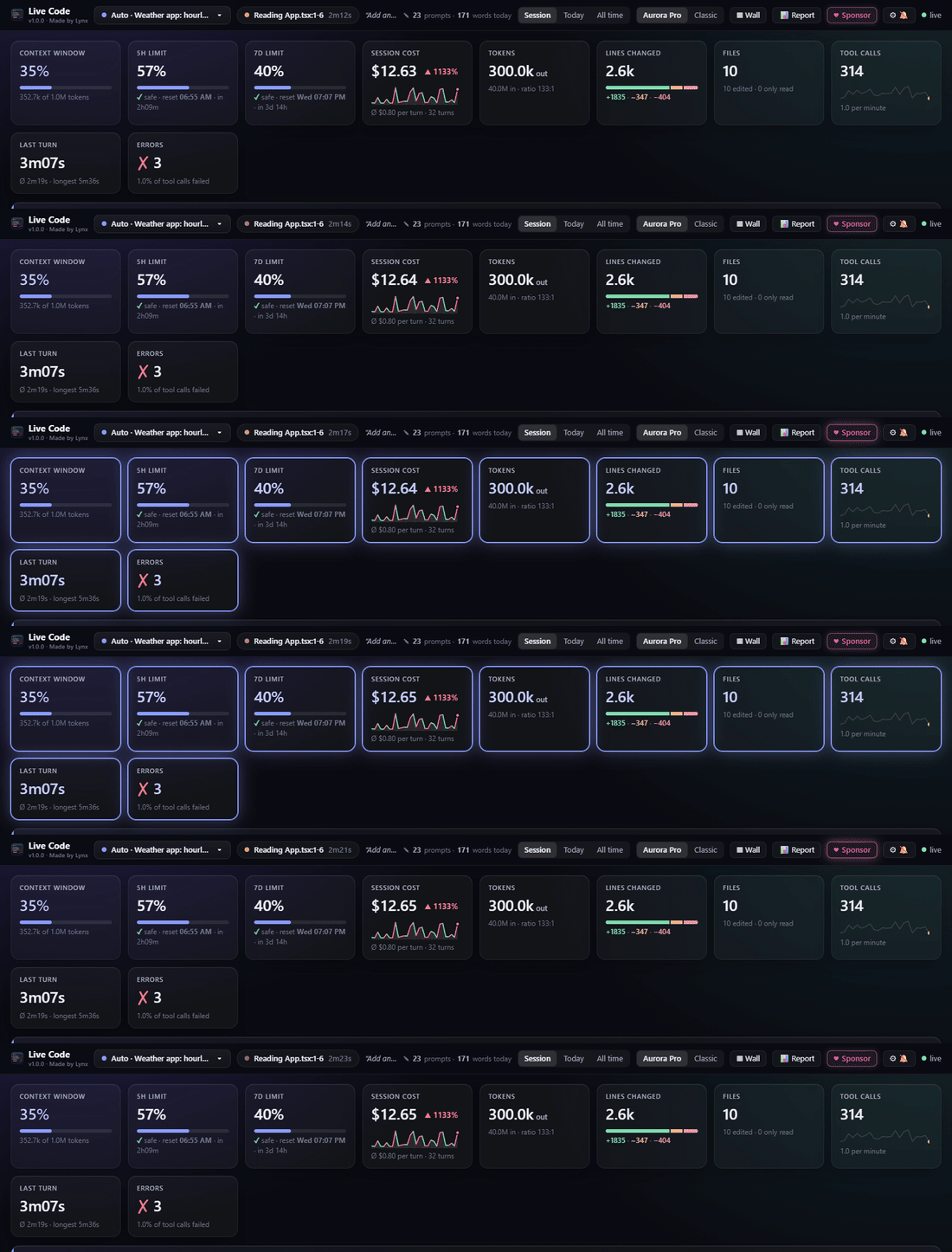
This works in Claude Code (terminal, desktop app, IDE), not in the claude.ai chat, since Claude needs to edit the files on your PC.
Changes that survive updates: an update replaces the mod's files. Put your own touches in ~/.claude/live-code-custom/ instead: custom.css is loaded after the dashboard's own styles (so it wins), custom.js after its scripts. An update never touches that folder, and the dashboard reloads when you change them. Ask Claude: "Put it in live-code-custom, so it stays after updates." For bigger changes, fork this repository and install from your fork.
What it runs, sends and fetches
Everything Live Code does outside of Claude Code itself, in full:
| What | When | Where it goes |
|---|---|---|
Writes each chat's live feed to ~/.claude/live-code-session-<id>.json | while Claude works | your PC only |
| Asks Claude Haiku for the one-line "what it is for" note of each action (the prompt, the recent steps and the change) | on each read, edit and search | Anthropic, through Claude Code's own model access |
Starts the dashboard server, node dashboard/server.mjs, listening on 127.0.0.1:4477 only | when a chat starts | your PC only |
| Opens the dashboard in Microsoft Edge (app window), tile windows through PowerShell + WebView2 | when you open them | your PC only |
Reads your chats' transcripts in ~/.claude/projects to count today's prompts and words | while the dashboard is open | your PC only |
Watches the folders a chat works in (with their subfolders) and its browser screenshots (~/.claude/projects/…/<chat>/tool-results) for new images, and reads its web searches, pages and the files it sent you from the transcript, for the Visual card (its list of the last hour kept in ~/.claude/live-code-visual-history.json, earlier versions of images in ~/.claude/live-code-visual-before) | while that chat was active in the last 10–30 minutes and a dashboard is open, unless paused | your PC only |
Notes what Claude takes help from (skills, design references, repositories, pages, searches, documentation tools, helper agents, packages, memories) from the transcript, kept in ~/.claude/live-code-sources.json (the newest 600) | while a dashboard is open | your PC only |
Shows the CLAUDE.md files of the chat shown and saves them when you click Save: only those files, only from the dashboard page, the version before kept in ~/.claude/live-code-claude-md-backups (the newest 40) | when you open the Instructions tile | your PC only |
Reads the sidebar's folders (their names and which chat is in which) from the Claude desktop app's claude_desktop_config.json, for the chat list; nothing else in that file is kept or shown | while the dashboard runs, and when the file changes | your PC only |
Blender live, only once you switch it on: live_code_blender.py in the startup scripts of the Blender a chat runs; Blender then writes its visible meshes and render names to ~/.claude/live-code-blender | while Blender runs | your PC only |
| Sends light commands to your own Philips Hue Bridge (local network, HTTPS) | only after you pair it, on done / question / stuck / a site build | your bridge |
Looks up the latest version number: api.github.com/repos/CNLynx/Live-Code-Dashboard/contents/.claude-plugin/plugin.json | every 10 minutes while the dashboard runs | GitHub |
Live users: a random id of this install (made on your PC, ~/.claude/live-code-install.json), nothing else; the answer is how many dashboards are open worldwide, shown as "● N online" | every 5 minutes while a dashboard page is open; switch it off in Settings → Display | Live Code's counter (a Cloudflare Worker, live-users/worker.js; ids kept in memory for 6 minutes only) |
Reads the build checks of the repository a chat works in, through your signed-in GitHub CLI (gh api …/check-runs) | every 20 seconds while that chat was active in the last 2 hours | GitHub |
Runs claude plugin marketplace update cnlynx and claude plugin update live-code@cnlynx | only when you click the Update available tile | GitHub, through Claude Code |
Downloads Microsoft's WebView2 SDK (Microsoft.Web.WebView2 1.0.2365.46 from nuget.org) for the frameless tile windows | once, at setup or the first tile window | nuget.org |
Setup: Start menu / desktop shortcut, launcher in %LOCALAPPDATA%\live-code-dashboard, Stream Deck plugin package opened in the Stream Deck app (you confirm there) | /live-code-setup, install.ps1, once per version | your PC only |
Optional: ElevenLabs voices, only if you put your own key in ~/.claude/live-code-voice.json | when a summary is read aloud | ElevenLabs |
No analytics, no tracking, no accounts: the live-users count is the one thing sent about you, an anonymous id, and it can be switched off.
What the mod does inside Claude Code
The mod (hooks/register.tsx) only watches and reports, with three exceptions that you trigger yourself:
- Hooks it uses:
session.start/session.end(start the server, register the commands),prompt.submit,classic.UserPromptSubmit,turn.start,turn.complete(count turns, time and cost),tool.callfor every tool (show what runs; the call itself goes through unchanged),agent.spawn(a lane per subagent; the event goes through unchanged),ui.renderfor its pane and a band above the prompt. It never changes a tool's input, a prompt or a setting. - Prompts it submits: only a message you type in the dashboard (or a Stream Deck prompt key you press) is sent to that chat, word for word, as if typed in Claude Code. The dashboard's ■ Stop stops the running turn.
- Questions answered from outside: while a dashboard or Stream Deck that can answer is open, Claude's
AskUserQuestionis shown there too, and the answer you pick there is given to Claude in place of the usual dialog. With nothing open, or with "Show the usual dialog", the normal dialog asks as always. It never answers by itself and never decides tool permissions. - Files it writes:
~/.claude/live-code-session-<id>.json(the live feed the dashboard reads), and~/.claude/live-code-answer-<id>.json(your answer from the dashboard, read back bybin/wait-answer.mjs). - Programs it starts:
node bin/ensure-server.mjs(starts the dashboard server, and once per versionbin/setup.mjs --auto),node bin/wait-answer.mjs(waits up to 20 s for an answer you give in the dashboard),node bin/setup.mjs(only on/live-code-setup). - Keys it reads: the Hue Bridge key that pairing stored in
~/.claude/live-code-hue.json(sent only to your own bridge), and an ElevenLabs key only if you put one in~/.claude/live-code-voice.jsonyourself (sent only to ElevenLabs).
Good to know
- Privacy: the dashboard listens on
127.0.0.1:4477only; what leaves your PC is listed in the table above. - Tokens: the "what it is for" notes are written by Claude Haiku: about one small call per action, roughly 1% of what the chats themselves cost.
- Files it keeps:
~/.claude/live-code-*(feeds, settings, Hue key) and%LOCALAPPDATA%\live-code-dashboard(window profile, WebView2 files). - Browser: the dashboard opens as an app window in Microsoft Edge (for its natural voices); Chrome works too.
- Uninstall:
claude plugin uninstall live-code@cnlynx, then delete the shortcuts and the files above.
Support
If Live Code saves you time, you can support its development. Thank you!

License
PolyForm Noncommercial 1.0.0 or PolyForm Small Business 1.0.0, your choice: free to use, change and share for any noncommercial purpose (personal use, hobby, study, research, nonprofits) and in small businesses (fewer than 100 people and less than 1 million USD revenue a year). Selling it, or using it in a larger company, is not allowed without the author's permission. Ask via GitHub.
Deutsch
Bilder und Animationen zu allen Funktionen: siehe oben.
Was es kann
-
Live-Code-Ansicht: Die Änderung, die Claude gerade macht, Zeile für Zeile getippt und farbig hervorgehoben. Darunter steht kurz, wofür sie ist.
-
Visual: sehen, was Claude sieht: Eine Karte neben dem Live-Code zeigt, was Claude anschaut und erstellt: Bilder, die sich Kachel für Kachel aufbauen, Browser-Schritte auf ihren Screenshots, Websuchen und Seiten, before | after mit einer Linie zum Ziehen, Befehle im Hintergrund, erzeugte Dateien und ein Blender-Modell, das sich dreht, während es entsteht. Ein Klick auf das 📎 eines Bildes nimmt es in deinen nächsten Prompt mit. Alles zu Visual
-
Deine CLAUDE.md, offen neben der Arbeit: Die Kachel Anweisungen öffnet jede CLAUDE.md, unter der der Chat läuft, zum Lesen und Bearbeiten. Daneben siehst du, was jede Datei nennt (Skills, Mods, Dateien, Befehle, Links), ob es vorhanden ist und wie oft Claude es wirklich benutzt hat. Quellen & Hilfen zählt, woher Claude Hilfe geholt hat, Prompt für Prompt. Alles zu den beiden Kacheln
-
Limits und Kosten auf einen Blick:
- Kontextfenster;
- 5-Stunden- und 7-Tage-Limit mit Reset-Countdown und Prognose;
- Session-Kosten als Kurve wie ein Aktienkurs;
- Tokens, geänderte Zeilen, Dateien, Tool-Aufrufe und Fehler.
Die Kacheln färben sich bei einstellbaren Schwellen gelb und rot. Ein Chime spielt, wenn ein Limit zurückgesetzt wird.
-
Jede Kachel lässt sich öffnen: Ein Klick zeigt exakte Zahlen und Diagramme mit Hover-Details. Du kannst jede Kachel auch als eigenes, rahmenloses Fenster ausklinken (minimal oder detailliert). Position und Bildschirm werden gespeichert.
-
Zurückschreiben: Du kannst Claude Nachrichten senden, es stoppen oder seine Fragen direkt im Dashboard beantworten.
-
Mehrere Chats:
- Auswahl: Die Liste ist nach den Ordnern der Seitenleiste deiner Claude-Desktop-App sortiert und folgt jeder Änderung dort sofort;
- Wall: alle arbeitenden Chats nebeneinander, jede Kachel bleibt an ihrem Platz. Ein Chat im Leerlauf blendet nach einer Minute aus. Oben stehen die Gesamtkosten der laufenden Chats und deine Limits. Ist ein Chat fertig, melden es ein Ton und ein Hinweis;
- Report: Tag und Woche pro Projekt.
-
Ton und Stimme: Ein Chime, wenn eine Aufgabe fertig ist. Auf Wunsch liest eine natürliche Edge-Stimme die Zusammenfassung vor (gratis, auf Wunsch pro Chat eine eigene).
-
Animationen:
- eine eigene Ansicht, wenn Claude länger nachdenkt;
- eine Terminal-Animation bei laufenden Befehlen;
- ein Alarm, wenn Claude festzuhängen scheint.
Stream Deck
Das Plugin macht aus einem Stream Deck mit 15 Tasten eine Claude-Konsole:
- Oben: deine Chats.
- Mitte: was Claude gerade tut, Zeit, Kontext, 5h-Limit und Kosten.
- Unten:
- 🎤 Sprechen: gedrückt halten und reden, das Deck zeigt live, was es hört; loslassen schickt es an den Chat. Das Zuhören macht das Dashboard-Fenster (Spracherkennung von Edge), es muss also offen sein; beim ersten Mal das Mikrofon erlauben;
- deine erste Prompt-Taste;
- Prompts: eine Seite mit bis zu 14 Prompt-Tasten, einzurichten im Dashboard unter ⚙ Einstellungen → 🎛 Deck;
- Stopp;
- Mehr.
Im Dashboard selbst diktiert das 🎤 neben Send in das Textfeld, zum Nachlesen vor dem Senden.
Fragt Claude etwas, werden die Tasten zur Frage mit den Antworten, und du antwortest mit einem Tastendruck. Ist eine Aufgabe fertig, leuchtet das Deck. Das Setup installiert das Plugin automatisch, wenn die Stream-Deck-App da ist; du bestätigst einmal in der App.
Philips Hue
- Fertig: ein kurzes, mintgrünes Aufleuchten.
- Frage: Die Lampen atmen violett, bis du antwortest.
- Hängt fest: rotes Aufblitzen.
- Die Seite wird gebaut: ein Fortschrittsbalken in Orange. Ein Lichtstreifen mit Farbpunkten füllt sich von einem Ende zum anderen, einzelne Lampen eine nach der anderen; am Ende kurz grün (rot, wenn der Build fehlschlug).
Jede Lampe behält ihre Helligkeit, ausgeschaltete bleiben aus, und danach ist alles wie vorher. Einrichten: Dashboard → ⚙ Einstellungen → 💡 Lights → Pair bridge. Dann den runden Knopf auf der Hue Bridge drücken und dort Lampen und Farben wählen.
Builds der Seite (Cloudflare, Vercel, Netlify)
Arbeitet ein Chat in einem GitHub-Repo, dessen Seite Cloudflare (Workers oder Pages), Vercel oder Netlify baut, zeigt der Live-Bereich den Build: das Zeichen des Anbieters, builds … · live oder preview eines Branches, die Zeit und einen Fortschrittsbalken; danach ✓ deployed oder ✗ build failed mit Link zum Log. Nötig ist nur die angemeldete GitHub CLI (gh auth login), kein Schlüssel des Anbieters: Der Anbieter meldet jeden Build an GitHub, das Dashboard liest ihn dort. Er meldet ihn erst, wenn er fertig ist; der Balken dazwischen folgt der üblichen Dauer seiner Builds.
Visual: was Claude sieht und macht
Die Karte Visual sitzt neben der Live-Ansicht, unter Current turn. Sie zeigt nur den angezeigten Chat: seine Bilder, Schritte, Dateien und sein Blender-Modell, nie mehrere Projekte gleichzeitig. Oben ist eine Bühne, darunter eine Liste mit allem, das Neuste zuoberst:
- Websuchen, gelesene Seiten und Seiten, die der Browser geöffnet hat (ein Klick öffnet sie);
- jeder Schritt im Browser: Ein Klick erscheint als pulsierender Ring auf dem Screenshot davor, Getipptes steht darunter;
- Screenshots des Browsers;
- Bilder, die Claude angeschaut, erstellt oder dir gesendet hat. Wird ein Bild neu geschrieben, zeigt es before | after, getrennt durch eine Linie zum Ziehen;
- erzeugte Dateien (Pakete, Exporte, Dokumente) und Downloads, mit Grösse und Ordner;
- Befehle im Hintergrund, mit ihren neusten Ausgabezeilen und danach ✓ oder ✗;
- Blender-Läufe.
Die Liste ist nach dem Prompt gegliedert, zu dem etwas gehört, und jeder Eintrag sagt in wenigen Worten, wozu er dient. Bilder zoomst du mit dem Mausrad und verschiebst sie durch Ziehen; ein Doppelklick setzt sie zurück. Was sich in einer neuen Version geändert hat, leuchtet kurz auf, bevor die before | after-Linie kommt. Ein Mauszeiger gleitet von einem Browser-Schritt zum nächsten, und ▶ replay bei einem Prompt spielt seine Browser-Schritte noch einmal ab. Die Liste der letzten Stunde übersteht einen Neustart des Dashboards.
Pause: ⏸ auf der Karte (oder Visual in den Einstellungen) pausiert sie: Nichts wird dafür gelesen oder beobachtet bis ▶. Ist kein Dashboard offen, ruht sie von selbst.
Bilder in den nächsten Prompt: Klick auf das 📎 eines Bildes, in der Liste oder oben beim angezeigten. Du kannst beliebig viele wählen, ein zweiter Klick nimmt eines wieder heraus. Das Band über Claudes Eingabe zeigt sie (📎 2 images, ✕ Remove), und dein nächster Prompt nimmt sie mit: Claude erfährt, wo sie liegen, und schaut sich jedes an, als hättest du sie in den Chat gezogen. Unter deinem Prompt in Claude erscheinen sie als kleine Bilder (in der Desktop-App) oder mit Namen; der Prompt endet mit einer kleinen Marke ([📎 2 images from Live Code · …]), damit dieselben Worte zweimal gesendet trotzdem nur ihre eigenen Bilder zeigen.
Mit ⧉ löst du sie heraus. Dann wird sie zu einem Fenster, das über dem Dashboard schwebt und von selbst kommt. Du verschiebst es am Kopf und änderst die Grösse an der Ecke. 📌 hält es offen, ⧉ setzt es zurück.
- Bilder: Ein Bild, das dort entsteht, wo ein Chat arbeitet (ein Render, eine von einem Skript gemalte Textur, ein Screenshot), ein gesendetes oder angeschautes Bild oder ein Browser-Screenshot setzt sich auf der Bühne Kachel für Kachel zusammen.
- Blender: Startet ein Chat Blender (
blender.exe -b … --python …), bietet das Dashboard Blender live an. Eingeschaltet legt es ein kleines Startskript in die Startup-Skripte dieses Blenders. Ab dann siehst du im Dashboard, wie sich das Modell dreht, während Claude es baut, und jeder Render kommt als Bild dazu. Geschrieben wird nur nach~/.claude/live-code-blender. Ausgeschaltet (Einstellungen → Display) wird das Skript wieder entfernt.
Quellen & Hilfen, und deine Anweisungen
Zwei Kacheln oben:
- Quellen & Hilfen zählt, woher Claude im angezeigten Chat Hilfe geholt hat (oder in allen Chats, oder heute, je nach Bereich): geladene Skills und gelesene Skill-Dateien, Design-Referenzen, geklonte oder auf GitHub gelesene Repositories, abgerufene Seiten, Websuchen, Doku-Werkzeuge und Guide-Agents, Helfer-Agents, ausgeführte oder nachgeschlagene Pakete sowie Erinnerungen und CLAUDE.md. Gross geöffnet listet sie alles unter dem Prompt, zu dem es gehörte, mit Anzahl und Zeit, filterbar nach Art.
- Anweisungen öffnet die CLAUDE.md-Dateien, unter denen der Chat läuft (die globale, die des Projekts, die der Ordner darüber und den Erinnerungs-Index des Projekts), zum Lesen und Bearbeiten. Daneben steht, wo jede Datei gilt und für welche Chats, und alles, was sie nennt (Skills, Mods, Ordner und Dateien, Befehle, Repositories, Links), mit Zeile und Überschrift, ob es vorhanden ist und wie oft Claude es benutzt hat. Ein Klick darauf markiert die Zeile. Speichern (oder Strg+S) schreibt die Datei, behält die vorige Fassung und warnt, wenn die Datei inzwischen anderswo geändert wurde; noch nicht gespeicherter Text übersteht ein Neuladen der Seite.
Die Wörter folgen der Sprache deines Browsers (Deutsch oder Englisch).
Installation (ein Klick)
Du brauchst Windows 10/11, Claude Code und Node.js. Öffne PowerShell und führe aus:
irm https://raw.githubusercontent.com/CNLynx/Live-Code-Dashboard/main/install.ps1 | iex
Das Script:
- installiert den Mod;
- legt die Verknüpfung „Live Code Dashboard“ im Startmenü und auf dem Desktop an;
- richtet das Stream-Deck-Plugin ein;
- öffnet das Dashboard.
Starte Claude Code danach einmal neu. Ab dann startet das Dashboard zusammen mit Claude. Von Hand geht es so: in Claude Code /plugin install live-code --marketplace CNLynx/Live-Code-Dashboard, danach /live-code-setup.
Updates
In Claude Code: /plugin → Marketplaces → cnlynx → Auto-Update einschalten. Von Hand geht es mit claude plugin marketplace update cnlynx und danach claude plugin update live-code@cnlynx. Oben links zeigt das Dashboard die installierte Version und darunter die neuste auf GitHub. Gibt es eine neuere, erscheint neben den anderen Kacheln „Update available“: ein Klick installiert sie und startet das Dashboard neu (der Teil in Claude Code übernimmt sie beim nächsten Start von Claude).
Live anpassen, per Prompt
Das Dashboard ist reines HTML, CSS und JavaScript. Es lädt sich selbst neu, sobald sich eine Datei ändert, ohne Neustart und ohne schwarzes Aufblitzen. Du kannst Claude in Claude Code also einfach sagen:
„Mach im Live-Code-Dashboard die Kosten-Kachel blau und füge eine Kachel für die durchschnittliche Turn-Zeit hinzu.“
Die Änderung erscheint, während Claude noch tippt. Das geht in Claude Code (Terminal, Desktop-App, IDE), nicht im normalen claude.ai-Chat, weil Claude dafür Dateien auf deinem PC bearbeiten muss.
Änderungen, die Updates überleben: Ein Update ersetzt die Dateien des Mods. Eigene Anpassungen gehören deshalb nach ~/.claude/live-code-custom/: custom.css wird nach den Stilen des Dashboards geladen (gewinnt also), custom.js nach seinen Skripten. Ein Update fasst diesen Ordner nie an, und das Dashboard lädt neu, sobald du sie änderst. Sag Claude einfach: „Leg es in live-code-custom, damit es nach Updates bleibt.“ Für größere Umbauten: Repository forken und vom Fork installieren.
Gut zu wissen
-
Datenschutz: Alles bleibt auf deinem PC (
127.0.0.1:4477). Nach aussen gehen nur:- die Hue-Befehle an deine eigene Bridge;
- alle 10 Minuten ein Blick auf die Versionsnummer dieses Repos;
- für „● N online“, solange ein Dashboard offen ist, alle 5 Minuten eine zufällige, anonyme ID dieser Installation an den Zähler von Live Code (Cloudflare Worker,
live-users/worker.js, merkt sich IDs nur 6 Minuten im Speicher). Abschaltbar unter Einstellungen → Display.
Auf deinem PC bleibt: Das Vorschau-Fenster erkennt neue Bilder in den Arbeitsordnern der Chats, Blender live schreibt nur nach
~/.claude/live-code-blender, und für die Chat-Liste liest das Dashboard die Ordner der Seitenleiste (Namen und welcher Chat wo liegt) ausclaude_desktop_config.jsonder Desktop-App. -
Tokens: Die kurzen „Wofür“-Erklärungen schreibt Claude Haiku. Das kostet etwa 1 % dessen, was die Chats selbst kosten.
-
Deinstallieren:
claude plugin uninstall live-code@cnlynx, danach die Verknüpfungen löschen.
Unterstützen
Wenn dir Live Code Zeit spart, kannst du die Weiterentwicklung unterstützen. Danke!

Lizenz
PolyForm Noncommercial 1.0.0 oder PolyForm Small Business 1.0.0, nach Wahl: kostenlos nutzen, anpassen und teilen für jeden nicht-kommerziellen Zweck (privat, Hobby, Lernen, Forschung, gemeinnützige Organisationen) und in kleinen Firmen (weniger als 100 Personen und weniger als 1 Million USD Umsatz im Jahr). Verkaufen oder in grösseren Firmen nutzen ist nicht erlaubt, ausser mit Erlaubnis des Autors. Anfragen über GitHub.
Details
- Author
- @CNLynx
- GitHub Stars
- 4
- Sub-category
- Dashboards
- Added
- 1 months ago
- Last synced
- today
Weekly Mods Digest
Top new Claude Code mods and install commands, once a week. No fluff, unsubscribe anytime.